Your first ScreenHello project
Learn to import, style, save and export a ScreenHello project. Understand local drafts, portable backups, offline resources and recovery without cloud accounts.
1. Open an example or import an image
Use Open editor on this page, then select Try an example in the centre of the canvas. To use your own screenshot, choose Choose image and pick a local file. Your image should appear in the central canvas before you continue.
2. Set the background and frame
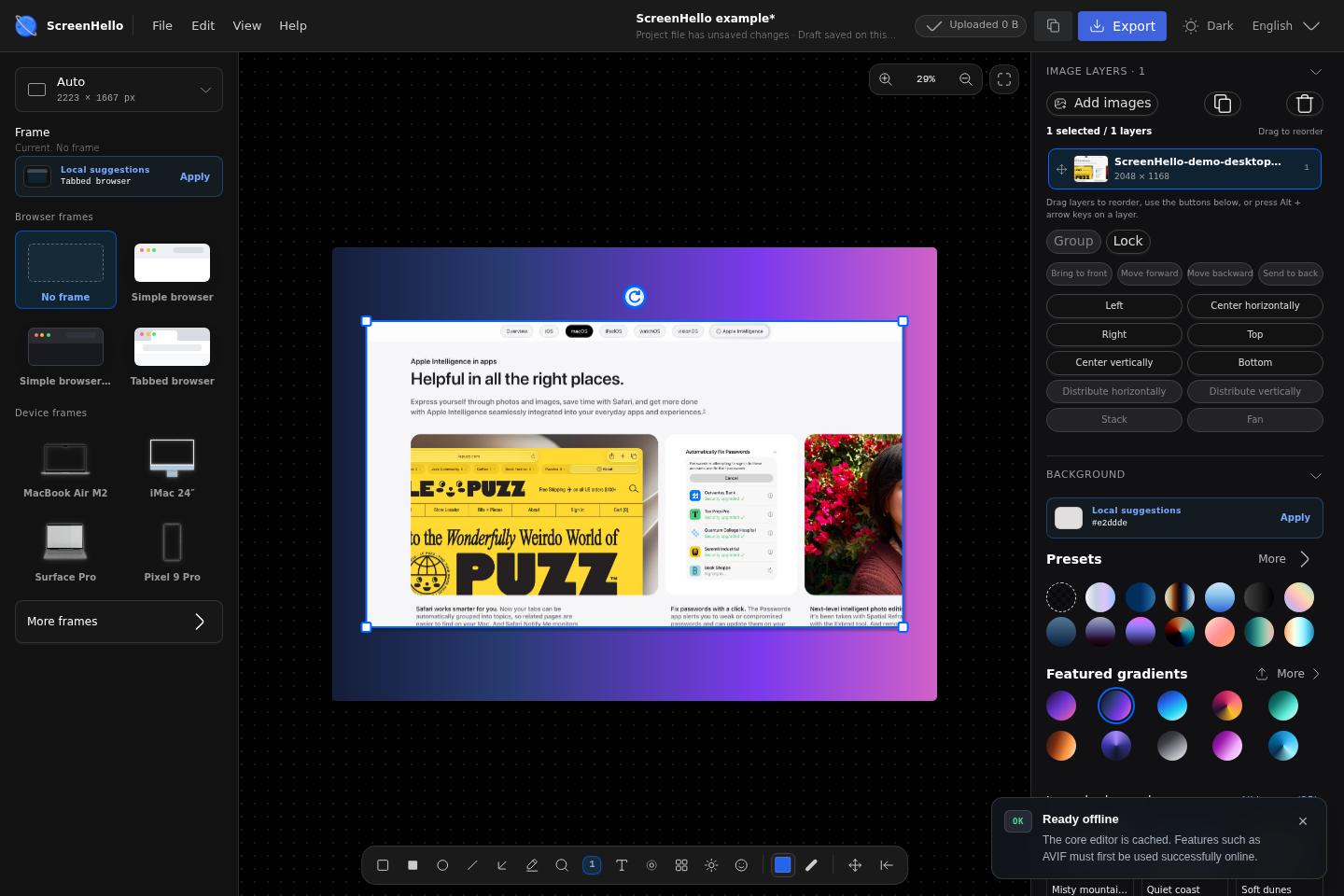
Use Background on the right to choose a solid colour, gradient or image, then adjust padding, corners and shadow. Set the canvas size and browser frame on the left. Use the bottom tools for arrows or other annotations when needed, and check that no text is cropped.
3. Check the size and download a PNG
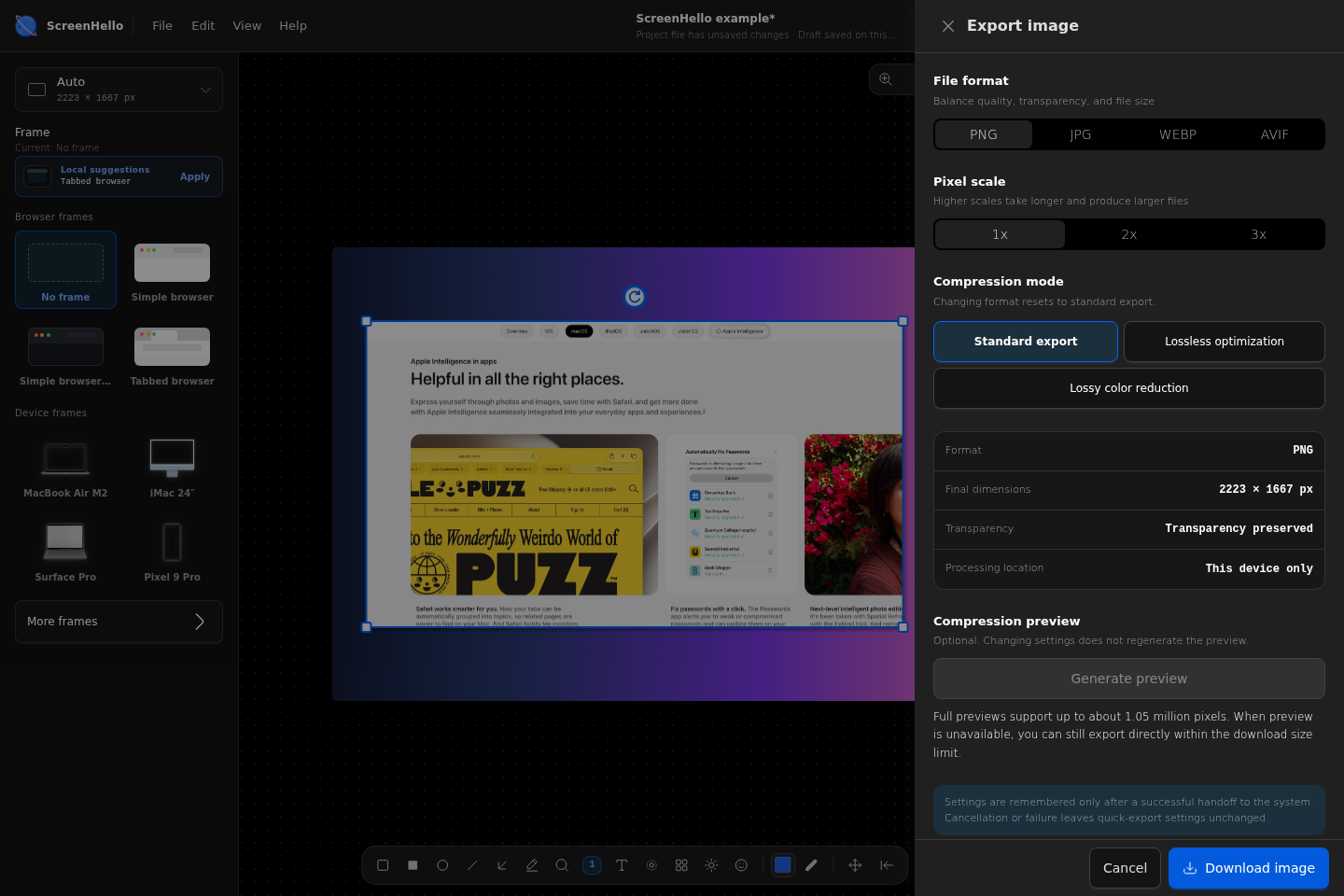
Select Export at the top. In the export panel choose PNG, standard export and 1× scale. Check the final pixel dimensions, then select Download image and keep the downloaded file. Canvas zoom does not change output dimensions; 2× scale doubles both width and height.
4. Save an editable project
Choose Save project in the File menu to save a .screenhello file. The downloaded image is the finished output; the project file preserves editable content. Later, use File → Open project to select that file and continue editing.
Save a file, not just a draft
Use File → Save project or Save as for a portable backup. File → Open project restores it. Local drafts and recent projects live in this browser, not in a cloud account. Clearing site data can remove them. Save a project file before clearing storage or moving to another device; transfer that file yourself.
Offline and troubleshooting
After the editor reports offline readiness, its cached core can reopen without a connection. Unused backgrounds, optional devices and encoders may still require a first online load. These guide pages require a connection and are not part of the offline editor cache. If capture or clipboard access is denied, use a local file instead. If export exceeds its budget, lower the canvas dimensions or pixel scale.
Keep exploring
Screenshot beautification: backgrounds, padding and shadows · PNG, JPG and WebP compression and export guide
Content reviewed